Getting started with Vital
Vital is a personal health log: track blood sugar, blood pressure, weight, food, and medications in one place. Everything is stored on your phone only — there are no accounts, no sign-in, and nothing is uploaded.
Before you start
Vital is a logging and reminder tool, not a medical device. It does not give medical advice. Always follow your doctor’s guidance, and call emergency services in an emergency.
Screenshots in this guide show sample data and Google test ads.
First launch
- Read the “Before you start” notice and tap I Understand and Agree. You only see this once.
- You land on Home.
The bottom bar has five tabs: Home, History, Food, Meds, Settings.
Home (overview)
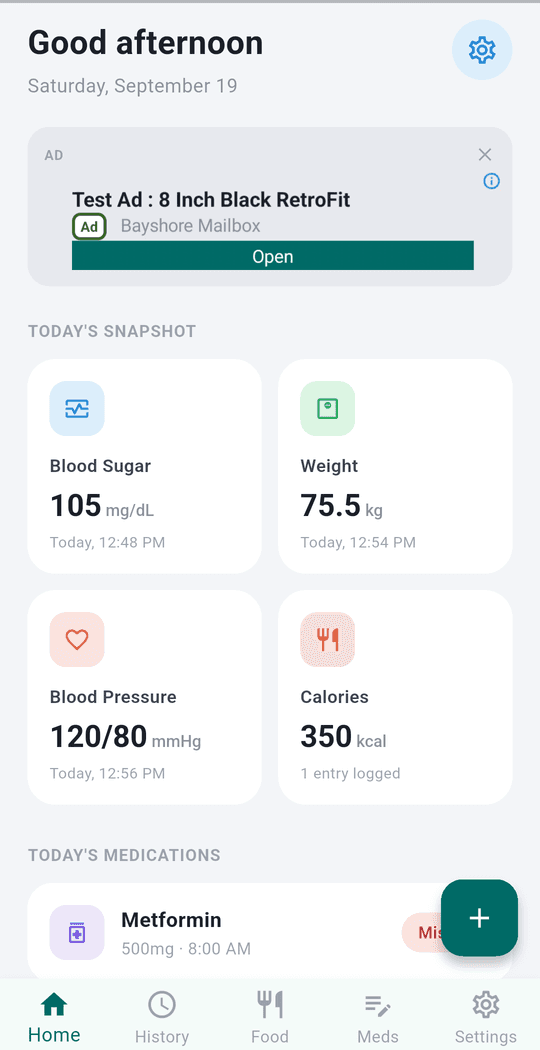
Home shows your day at a glance and refreshes every time you return to it.
- Today’s Snapshot — four cards:
- Blood Sugar, Weight, Blood Pressure: your latest reading and when it was taken.
- Calories: the total calories you’ve logged today (with how many entries).
- A card shows Not logged yet until you add something. Tap any card to log or open it.
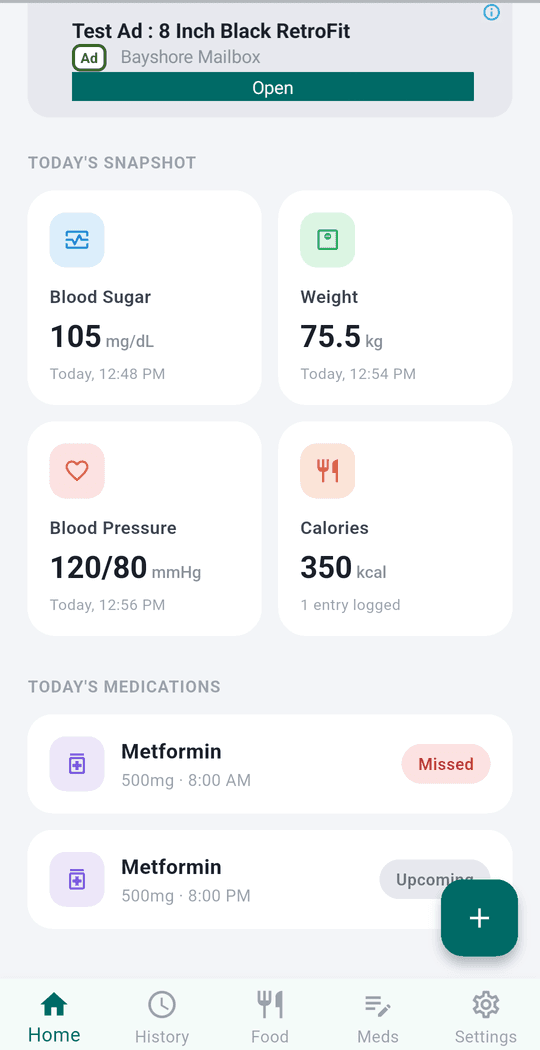
- Today’s Medications — each scheduled dose with its time. Mark it Taken or Skipped right here.
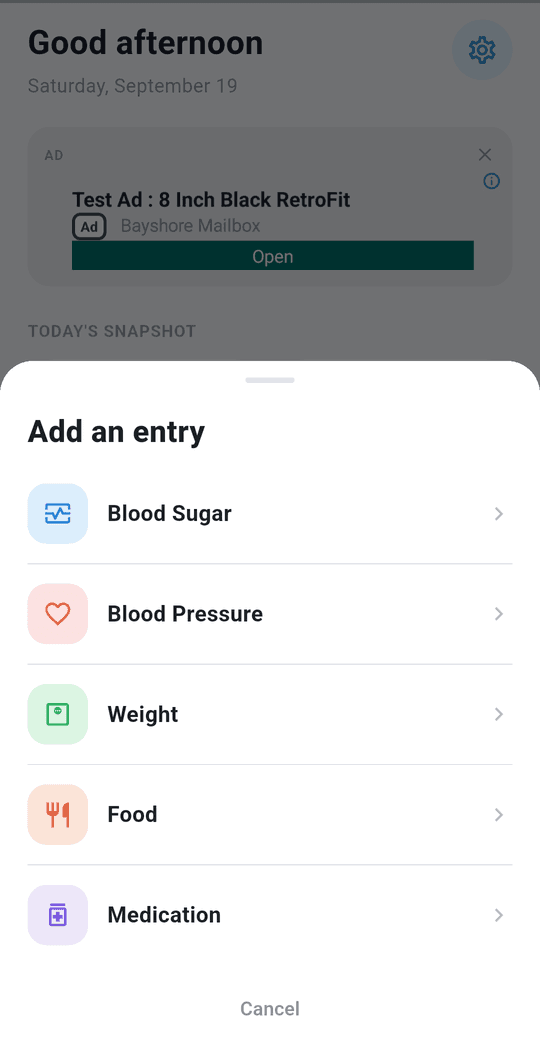
- Green + button — quick-add any entry (see Logging an entry).
- Backup reminder — after enough new entries, a banner nudges you to back up your data.
Logging an entry
Tap the + button on Home (or a snapshot card), then choose what to add:
| Entry | What you enter |
|---|---|
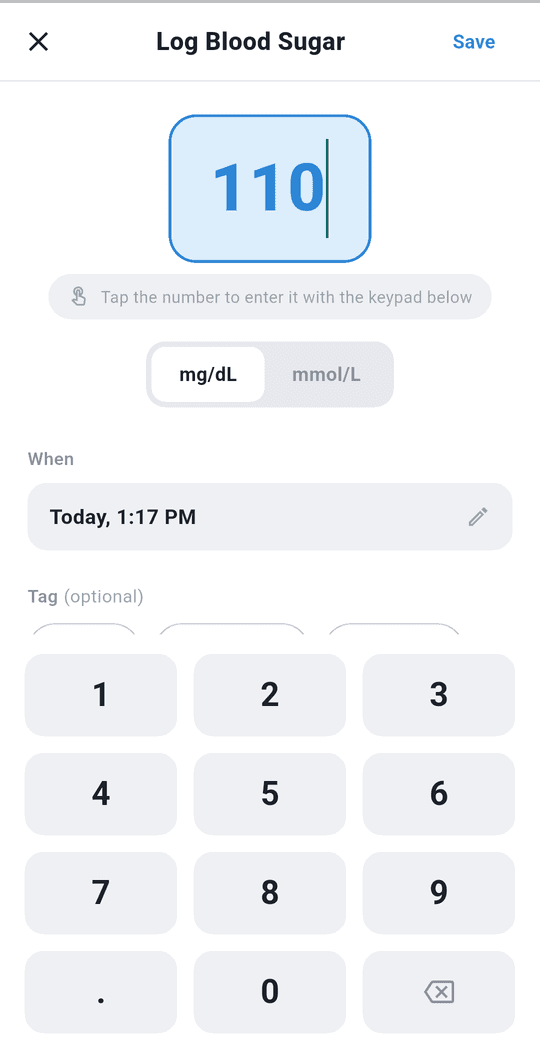
| Blood Sugar | Value, unit (mg/dL or mmol/L), optional tag (Fasting, Before meal, After meal, Other), date/time, optional note |
| Blood Pressure | Systolic, diastolic, optional pulse, date/time |
| Weight | Value, unit (kg or lb), date/time |
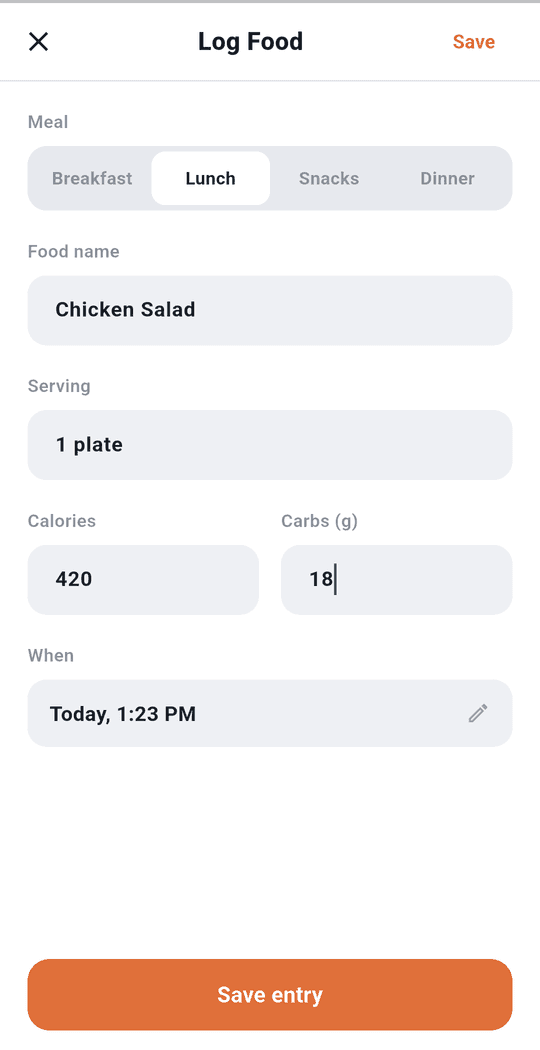
| Food | Meal (Breakfast / Lunch / Snacks / Dinner), food name, serving, calories, carbs (g), date/time |
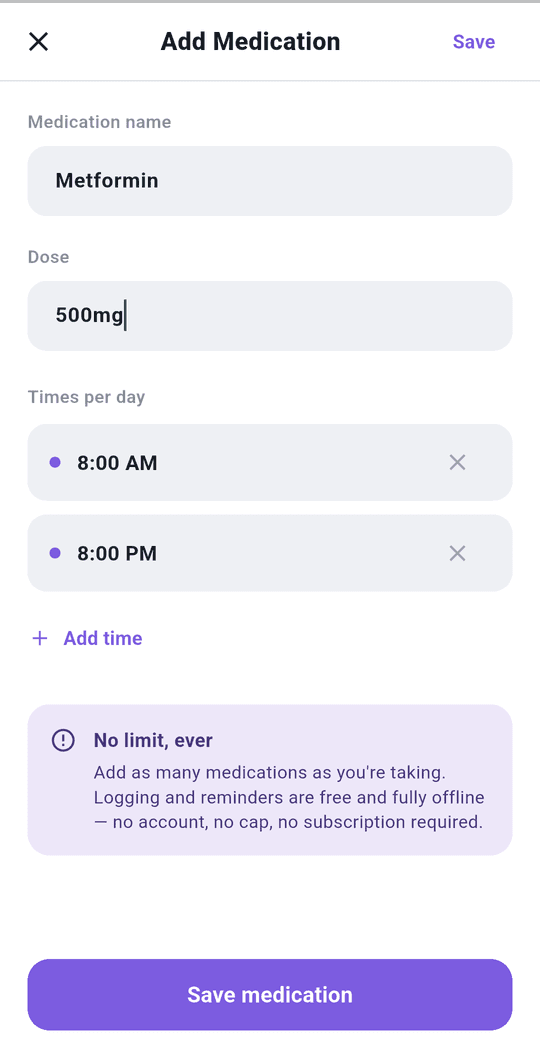
| Medication | Name, dose, and the times of day to take it |
Tips:
- The When field defaults to now — tap it to pick a different date and time.
- Save is disabled until the required fields are valid.
- Tap any past entry (in History or Food) to edit it or delete it.
History
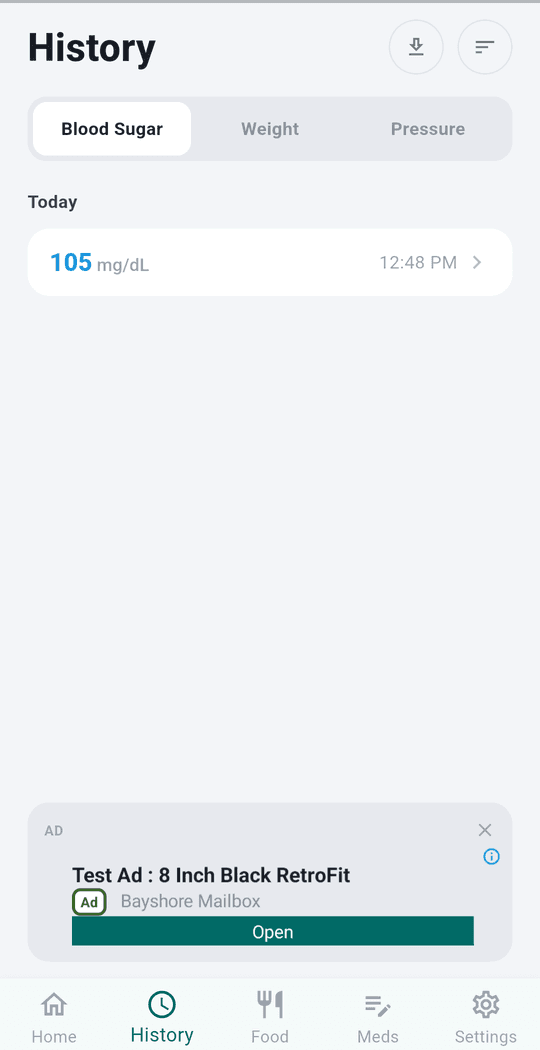
View all your blood sugar, weight, and blood pressure readings.
- Switch metrics with the tabs at the top.
- Entries are grouped by day (Today, Yesterday, then dates).
- Tap Load earlier entries to see older ones.
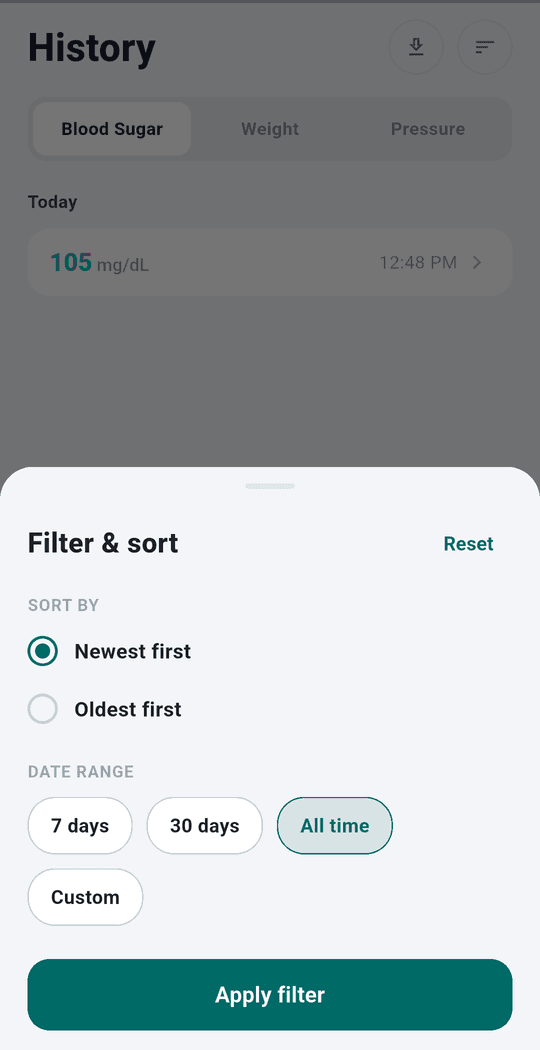
- Filter & sort (sort icon): choose a date range (7 days, 30 days, All time, or Custom) and Newest first / Oldest first. Tap Reset to clear.
- Download icon: creates a summary you can share (e.g. to show your doctor).
- A Device tag with a Bluetooth icon marks readings imported automatically from a paired device.
Food
Track what you eat, day by day.
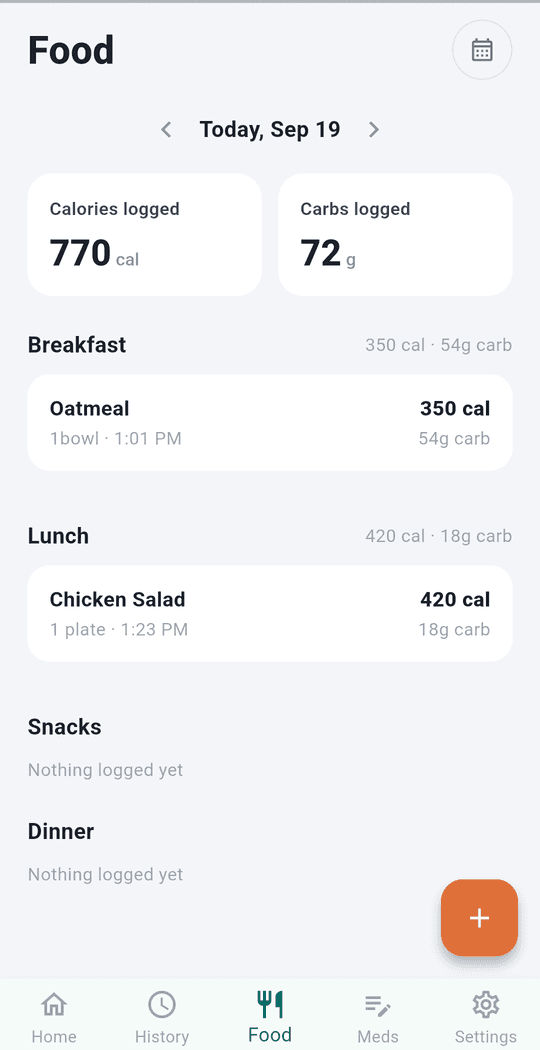
- Use the ‹ › arrows (or the calendar icon) to change the day.
- The top cards show Calories logged and Carbs logged for that day.
- Entries are grouped under Breakfast, Lunch, Snacks, and Dinner, each with its own totals.
- Tap the orange + to log food; tap an entry to edit or delete it.
Meds
Manage your medications and reminders.
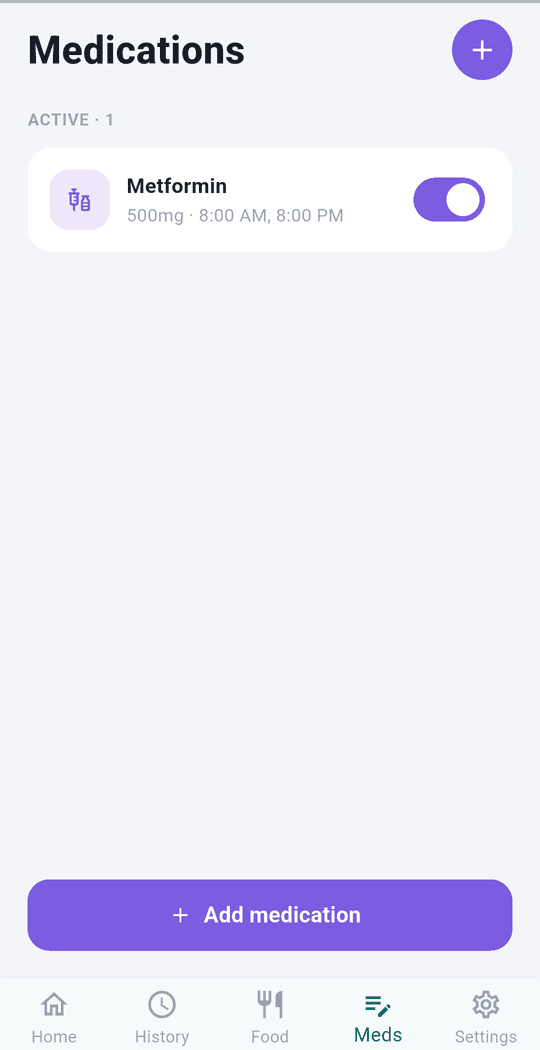
- Add medication to create one with one or more daily times.
- Medications are split into Active and Paused — flip the toggle to pause or resume one without deleting it.
- Tap a medication to edit it.
- On Home, each dose shows a status: Upcoming, Taken, Skipped, or Missed. A dose more than about 3 hours late with no action counts as Missed.
Reminders: turn on Notifications in Settings to get a reminder 30 minutes before each scheduled dose. Allow notification permission if your phone asks.
Connect a Bluetooth device (optional)
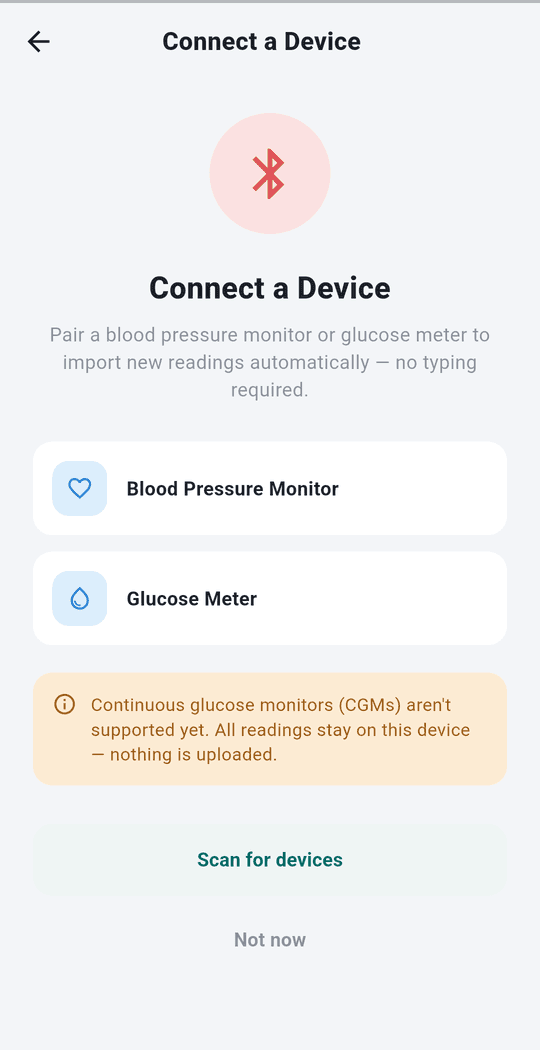
Import readings automatically from a compatible Bluetooth blood pressure monitor or glucose meter (standard Bluetooth Blood Pressure / Glucose profiles). Continuous glucose monitors (CGMs) are not supported.
- Go to Settings → Devices → Connect a device.
- Tap Scan for devices. Allow Bluetooth permission when asked.
- Put your device in pairing mode. When it appears under Found nearby, tap Connect.
- Once you see Connected, tap Done.
From then on, new readings import automatically while the app is open. Readings taken while the app was closed are picked up the next time you open it, if your device supports resending stored readings.
To remove a device: Settings → Devices → tap the device → Forget device.
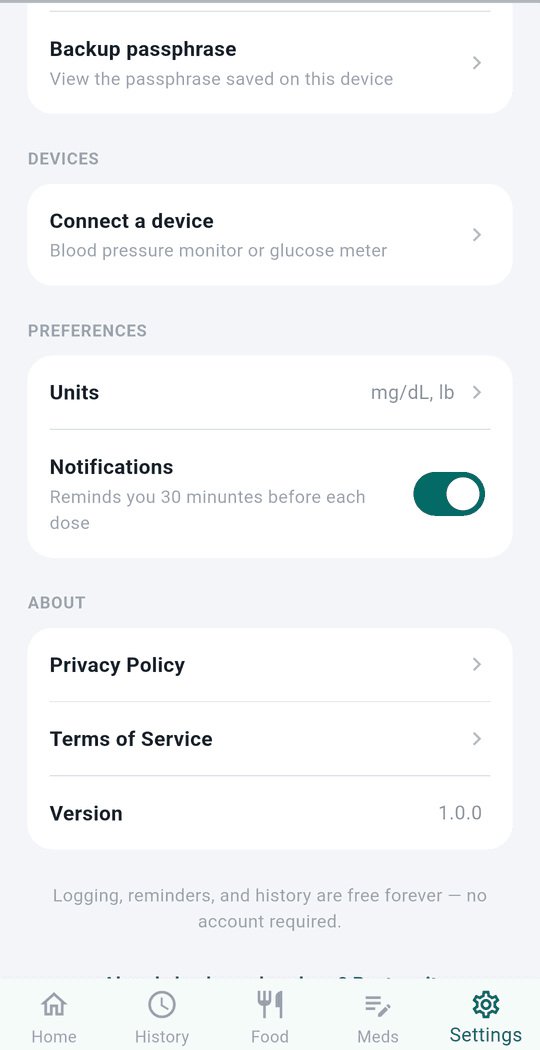
Settings
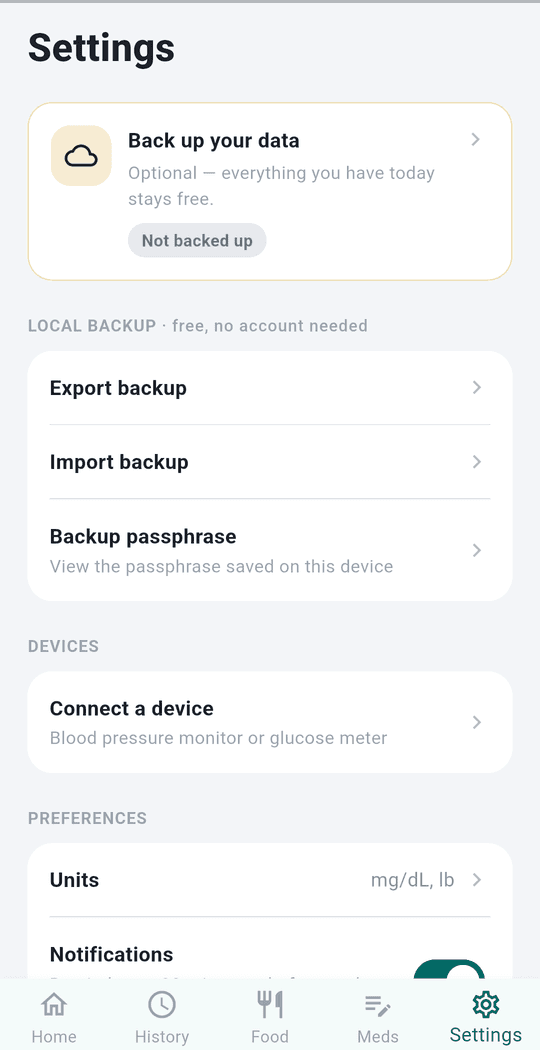
- Backup card — shows whether your data is backed up and prompts you when it’s out of date.
- Local Backup
- Export backup: choose a passphrase, then save/share the encrypted file (e.g. to cloud storage or email yourself).
- Import backup: pick a backup file and enter its passphrase to restore.
- Backup passphrase: view the passphrase saved on this device.
- Devices — connect or forget Bluetooth devices.
- Preferences — Units (blood sugar mg/dL or mmol/L, weight kg or lb) and Notifications toggle.
- About — Privacy Policy, Terms of Service, and app version.
Back up your data (important)
Because everything is stored only on your phone, uninstalling the app, resetting your phone, or losing it will erase your data unless you have a backup.
- Settings → Export backup.
- Enter a passphrase and confirm. Remember it — you need it to restore.
- Save or share the file somewhere safe (cloud drive, email, computer).
Back up regularly — the Home reminder appears after 20+ new entries since your last backup.
To restore (new phone, reinstall): Settings → Import backup, pick the file, enter the passphrase.
Troubleshooting
- Home data looks out of date — leave and return to Home; it refreshes on every visit.
- Can’t find my Bluetooth device — make sure Bluetooth is on, the device is powered on and in pairing mode, and you’ve allowed Bluetooth permission (Settings → Apps → Vital → Permissions).
- No reminders — check Settings → Notifications is on and your phone allows notifications for Vital.
- “Incorrect passphrase” on import — re-enter the passphrase used when the backup was created.
- Database problem on launch — Vital automatically restores from its most recent on-device snapshot and tells you when it did. Entries added after that snapshot may be missing, so restore an exported backup if you have one.
Privacy at a glance
- No account, no login, no analytics on your health data.
- Readings, food, and medications never leave your phone unless you export a backup.
- Crash reports contain technical information only — never your health entries.
Read the full Vital Privacy Policy.